
Wiki restriction in progress

The wiki came under discussion in today’s seminar. As such, it is offline until such a time as I can come up with a robust way to restrict access to seminar notes, while leaving all the material that I have been producing myself available.

Ideally, I would like to either make specific pages of the wiki require a password to access or, alternatively, restrict certain pages to specific user accounts. If anyone knows how to do this elegantly, please let me know.

I expect that I should have my portions available again by Monday. If you care to report any bugs on the blog between now and then, feel free to do so as a comment to this post.

[Update: 4:30pm] Much more quickly than expected, I have been able to establish a content management system for the wiki that allows certain pages to be restricted from public access. This treatment has now been applied to seminar notes from the thesis seminar and the Developing World seminar. It has not been applied to my reading notes, notes related to public lectures, or other such pages. As with any such change (one that requires me to edit PHP script and MySQL database settings), please report any bugs that you encounter.

Once again, I must say that I am impressed with MediaWiki as a platform. All I did was backup the MySQL database and the /images/ folder, erase the old install (except for LocalSettings.php), install a patched version of MediaWiki, run the installer, throw out the config file it generated, add the restriction patch code to the old config file, and then configure user accounts to have access to restriction features. That may sound very tricky to a lot of people, but it was actually a breeze. The whole thing was done in half an hour, with no hiccups discovered so far. Now that it is publicly known, the Lecture and Seminar Notes section of the wiki has graduated out of the experimental grouping.

Replace generic blog templates

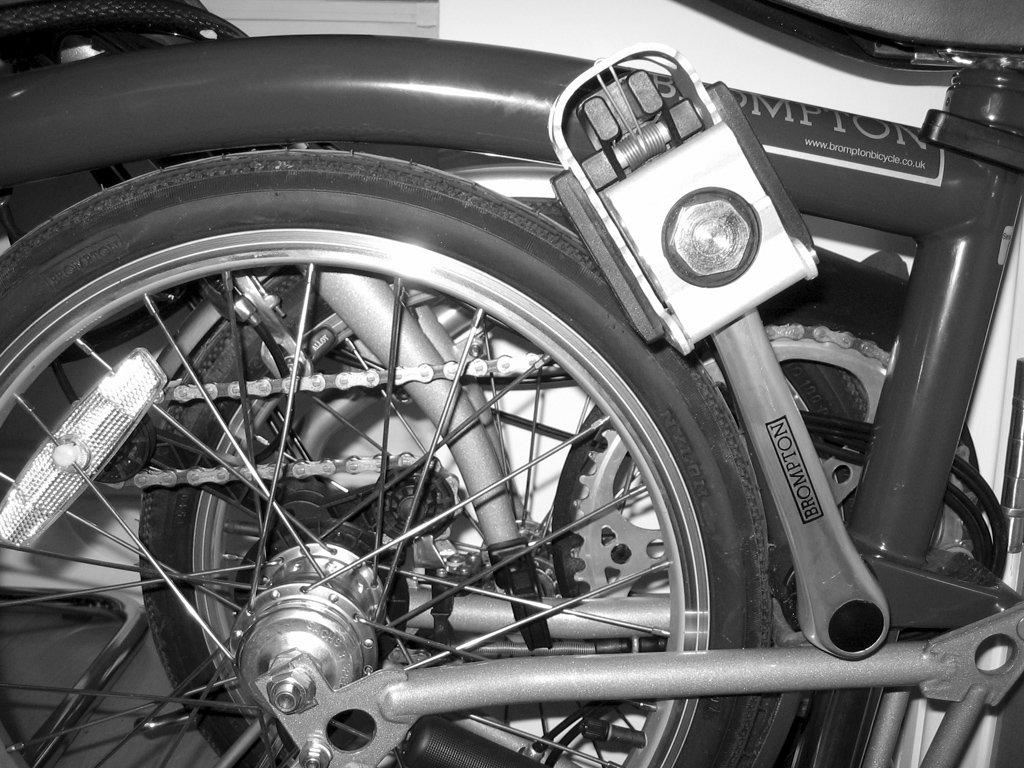
Folding bicycle

As more and more friends and colleagues set up blogs, it becomes harder to distinguish between so many identical looking pages. While the default Blogger templates are generally attractive, they have now been used so many times that anything written on one automatically looks generic.

A good template should, above all, be clear and readable. Next, it helps for it to look stylish and professional as well. While it is beyond the means of most beginner bloggers to create their own template, there are masses available to be downloaded for free. Regardless of whether you use Blogger, WordPress, or something else, changing your template is a quick way to make your blog more distinctive and memorable.

If you want to see the snazziest of templates (though many are more beautiful than usable), have a look at Zen Garden.

Listed below are a few places where decent, free templates can be picked up. Dozens more can be found in less than a minute, through Google.

For Blogger:

You can easily find instructions online on how to change your Blogger template. One thing to note: because Blogger generates every page of your blog in advance, before they are requested, you will need to republish the whole blog before the template will appear everywhere.

For WordPress:

There are so many such sites, and they are so easy to find, that it is almost pointless to list them. Instructions for changing WordPress themes are likewise easily available.

If you are using a system other than Blogger or WordPress, Google and ye shall find. You can also find some basic tutorials on customizing a template that you find, so as to make it individualized. Here is an example.

Data exchanged

Grad students in Oxford should definitely make use of the 50GB of free backup space provided by the school. A backup is the best defence against anything that can happen to your computer: from viruses to abrupt falls. Before you can backup your data, you need to register.

After about ten hours, my data is on the HFS server. It seemed like overkill to back up all the music, but this was the default configuration. It took enough tinkering to make it work in the first place, and I was able to tell it not to back up videos. Fifty-four gigabytes, passed across the network at about 800kb/s.

It’s odd to think of the robot arms sorting data backup tapes, in fire safes wherever they may be. I am glad everything sensitive is durably encrypted, as far as I can recall.

New blog on Vancouver speaking events

Most of what I write here is for people attending or interested in Oxford. Here’s a link for people in Vancouver. My friend Tristan is setting up a blog that lists speaking events in that fine Pacific city. If you have something to suggest, please email him through the links provided therein.

People with web design experience are particularly encouraged to help develop this into a useful service for academically inclined Vancouverites.

Oxford Wireless LAN

While it may not be obvious, there is indeed a certain amount of university-run wireless networking in Oxford. Network availability is quite limited, but at least one of these seems to seep into the room where my developing world seminar is held.

In order to use the network, you need to register for a remote access account and get a Cisco VPN client. Mac configuration is detailed here. It is annoying that you need to install special software for the VPN, given that Mac OS X can handle normal wireless networks perfectly well on its own. This means that you cannot access the VPN (say, to use electronic resources) from any computer on which you are not allowed to install software.

Hopefully, wireless networking will rapidly become more widely available in Oxford. That said, I have serious doubts about whether any such change can occur rapidly within such a disaggregated and complex system.

PS. Another OUCS service well worth looking into is their HFS backup system. It is especially valuable for people with finicky and easy to steal laptops:

Three copies of your data are made, each to separate tapes; one copy is held in the automated tape library; the second, in a fire-proof safe located at OUCS and the third in a fire-proof safe at an offsite storage facility outside Oxford.

Snazzy, no? It is only available for graduate students.

Apple store geek fetishism

24 inch iMac

The Apple Store in London has given me a good chance to play with some brand new expensive hardware. There is no denying that the iMac with a 24″ screen and a 2.16 Core 2 Duo processor is excessive. It is likewise undeniable that it is excessive in a good way. Anyone who works seriously with photos can appreciate the virtues of a 1900×1200 native resolution, especially on a monitor that can be easily configured to use standardized white balance and colour settings. All Macs look so much nicer once you set them to D50, I don’t know why they don’t come out of the box that way.

The MacBook Pros are also very nice, though even the demo units are surprisingly warm – especially on the flat area to the left of the trackpad. I suspect the processor resides there, since the computer was sitting idly when I checked the temperature and would therefore not be likely to be conducting hard drive operations. Unfortunately, none of the machines have a Dashboard widget running that indicates temperatures. Along with battery life and the limits of photolithography, heat seems to be the major limiting factor in consumer computers at the moment.

One surprise: not a single one of the hundred of so Macs on display, including the absurdly expensive ones, is running a demo of Photoshop. Apparently, Adobe still hasn’t released a version compiled for Intel macs. As such, you will be running a PPC compiled version through the Rosetta emulator built into Tiger. That means that, even with brand new gear, you would be lucky to have it run any faster than on an older PPC-based system. I tried playing with Aperture a bit but, like Photoshop, it is impossible to judge the real functionality in the hands of a neophyte.

All that said, I have been here long enough. It is time to move on to my next London objective.

PS. The Mighty Mouse is very decent, but hardly worth the asking price. Horizontal scrolling is useful so rarely that having a bi-directional scrollwheel is a distraction, rather than an aid.

On mass leaching of images

Hotlinkers beware! Whenever you generate more than, say, 25,000 requests to my server, you will get the pancake face of doom. It may be a small fraction of my total bandwidth allotment, but when it begins happening at such a scale it transcends ‘annoying’ and becomes ‘rude.’

The saga of my interactions with the MySpace hotlinkers began here. Here is one of the many offending sites. This one has generated 700 image requests during the last thirty days.

Hiccups and new hardware

As the number of support requests I am getting from friends with brand-new MacBooks demonstrates, buying hardware that has just been released – even from a good company like Apple – is likely to land you with all the teething troubles inherent.

Apple laptop lines (formerly, the iBooks and Powerbooks; now, the MacBooks and MacBook Pros) tend to get quietly upgraded as they age: they highlight the bigger hard drives and faster processors, but the more important changes are usually fixes for issues that have cropped up among the early adopters.

The general maxim: if you want to avoid tech support and headaches, let others walk ahead of you. My iBook may take fifteen times longer to boot than the new MacBooks, but at least it does so consistently.

PS. Those having trouble with MacBooks not restarting, shutting down randomly, and doing other problematic things with regards to power should try the following:

  1. Make sure you have downloaded and installed all the patches for Mac OS X itself. You should have your system to check for these daily, and you should install them as soon as they come out.
  2. Try reseting your PRAM – this may sound like nonsense, but everyone with experience in trying to fix Apple hardware will be nodding knowingly to that suggestion.
  3. Try resetting your System Management Controller (much like the Power Management Unit in the iBooks and PowerBooks).

My general tips on protecting your computer are useful for at least minimizing the harm if a serious hardware issue arises.